How the jar works
Everything a grown-up needs to set up earned time, from the first five minutes to quiet hours and Family time.
- Getting started
- Learn, Move, Play
- Your family page
- Open, Earn, Hidden
- How children earn
- The jar and goals
- Spending time
- Limits and quiet hours
- Family time
- Brothers and sisters
- Progress
- Locking the iPad
Getting started
The first time BrimbleBay opens, a short set-up walks you through it. You can skip it and come back any time from For grown-ups > More settings > Set up again.
- Parent passcode. Choose a code only grown-ups know. It protects settings, the family plan and anything that leaves the app.
- Children. Add each child's first name or nickname. Nothing else is asked.
- Games they earn. Tick the Play games that should use the jar. Learn and Move games can't be ticked: they're always open.
- Quiet hours and a daily limit, if you'd like them.
- Lock to BrimbleBay. A quick guide to Apple's Guided Access.
Learn, Move and Play
BrimbleBay has three places, one tap from the home screen:
- Learn: reading, writing, numbers, time and money, music, coding, origami and space. Roughly ages 4 to 8, side by side with a grown-up.
- Move: yoga, freeze games, countdowns and paper planes.
- Play: favourites that use the jar, like racing and cooking, then games for the whole family that never do, like chess, checkers and air hockey.
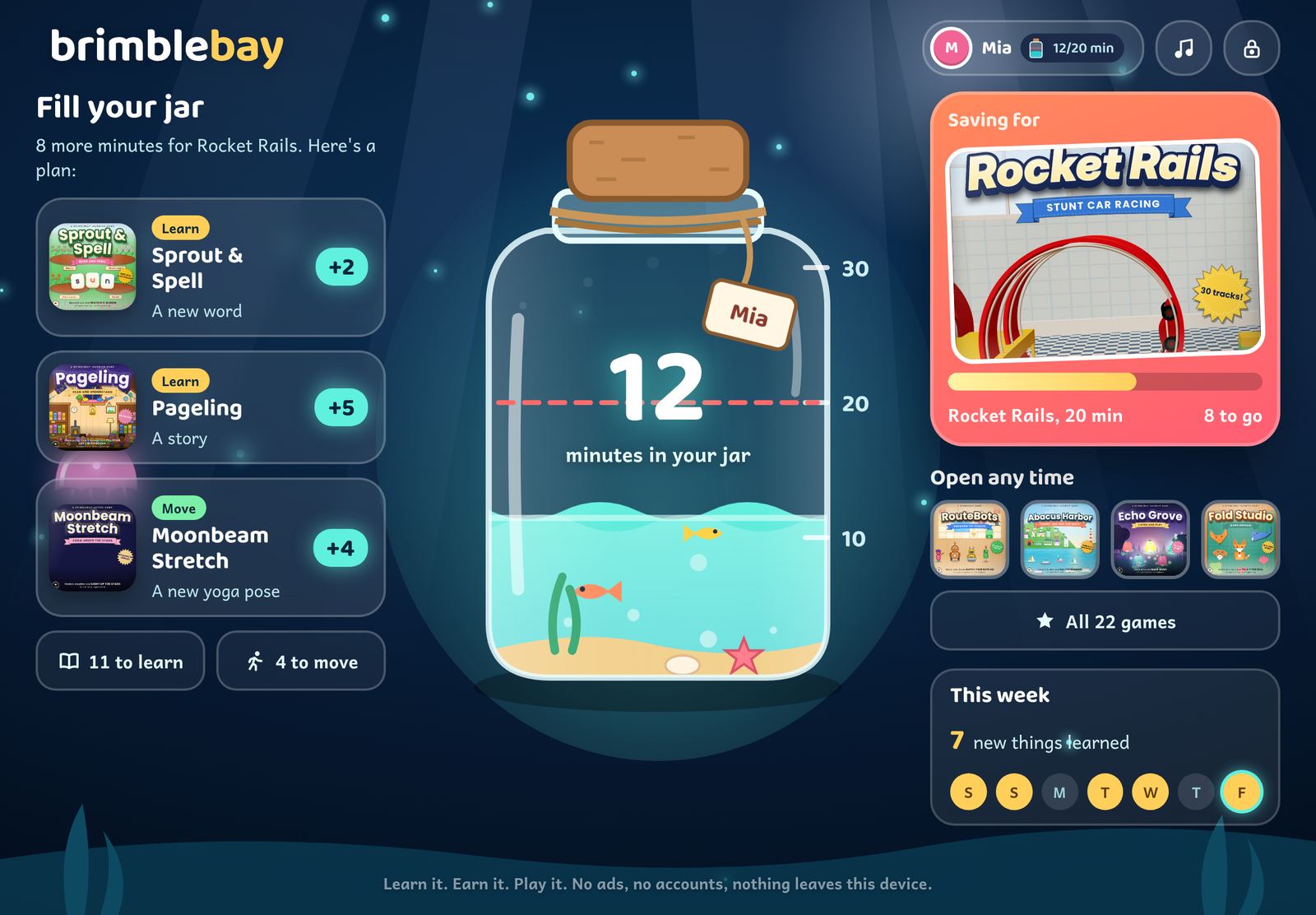
The home screen is built around your child's jar: how many minutes are in it, what they're saving for, and a short plan of learning and moving steps to get there.
Your family page
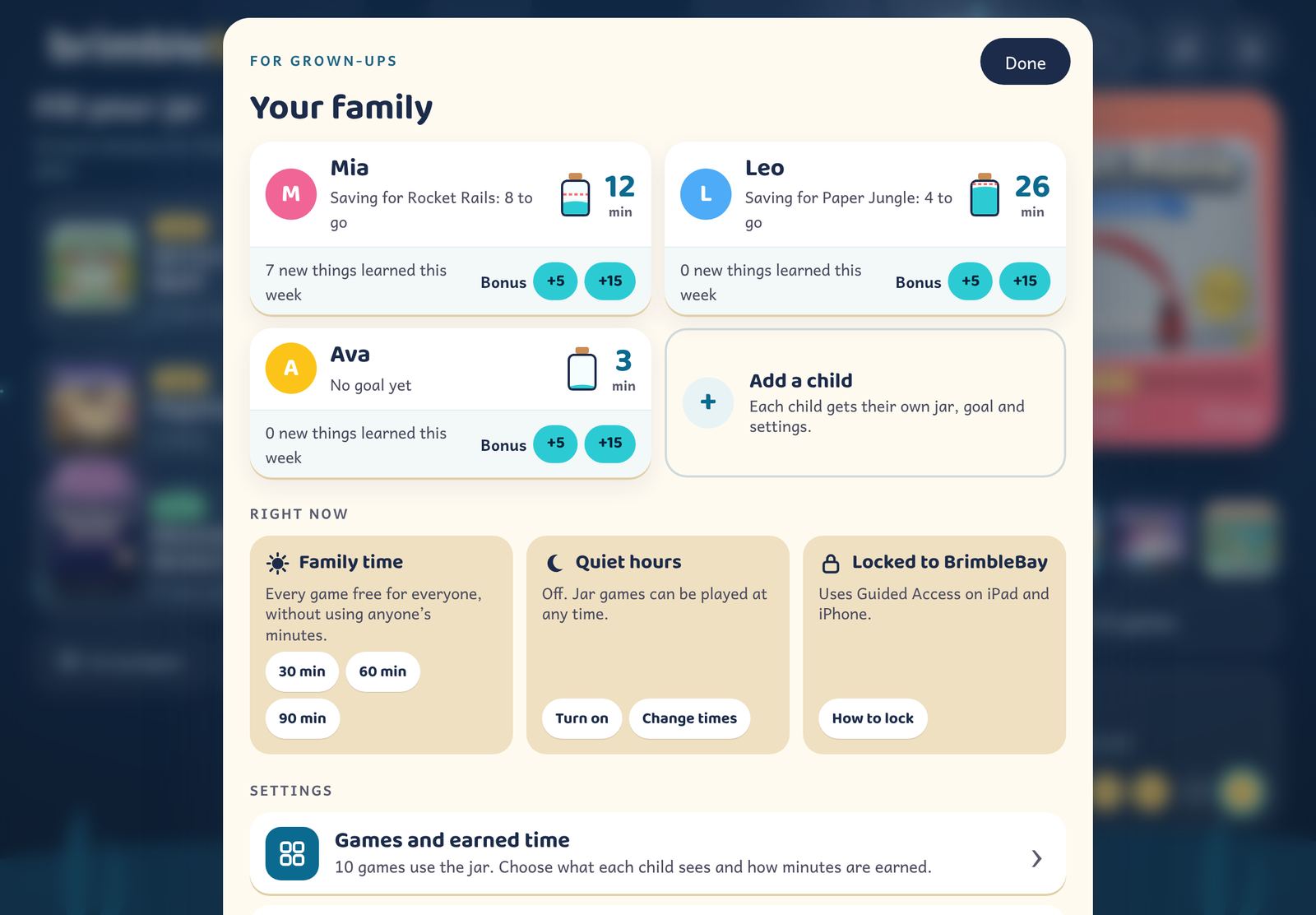
Tap the lock in the top corner and answer the grown-up check to open For grown-ups. It starts with Your family: each child's jar, their goal and what they learned this week, with one-tap bonus buttons. Under Right now you can start Family time, turn quiet hours on or off, and see whether the iPad is locked to BrimbleBay. The main settings sit below, with everything else under More settings.
Open, Earn time or Hidden
In For grown-ups > Games and earned time, every game has three settings. You can set them for everyone, or give a child their own.
| Setting | What your child sees |
|---|---|
| Open | Plays any time. |
| Earn time | A “Uses jar” badge. Playing spends minutes from their jar. |
| Hidden | Not shown at all. |
Whole places can be hidden too. Learn and Move games are always Open or Hidden, never Earn time, because learning should never feel like a toll booth.
Out of the box, ten games use the jar: Rocket Rails, Paper Jungle, SnapYard, Plank-Pile, Tidelight, OrbitTune, WindPuck, Comet Kitchen, BeatBloom and Peg League. Everything else in Play, like chess, checkers and the family table games, is open any time. Change any of them in two taps.
How children earn
Children earn minutes for new progress, not for time in the app. Going over something already mastered doesn't earn again, so there's nothing to gain from rushing easy work.
| Game | One step | Minutes |
|---|---|---|
| Sprout & Spell | a new word in bloom | 2 |
| Letterlight | a new letter | 2 |
| Pageling | a story understood | 5 |
| Abacus Harbor | a math skill mastered | 6 |
| Gulplings | a new level | 3 |
| Clockwork Market | a new skill | 4 |
| Echo Grove | a new song or skill | 3 |
| Fold Studio | a model folded | 5 |
| Mission Orbit | a new discovery | 3 |
| RouteBots | a puzzle solved | 4 |
| DoodleLoft | a drawing lesson | 4 |
| Moonbeam Stretch | a pose or trail | 4 |
| Crinkle's Hangar | a sticker or plane | 3 |
| Red Light, Green Light | a round | 2 |
| HustleClock | a mission beaten | 2 (up to 8 a day) |
- Practice counts a little: 1 minute for every 3 practice turns, up to 5 minutes a game a day.
- Earning rate: choose Fewer (half), Standard or More (one and a half times).
- Most minutes earned in a day: 30, 45 (the default), 60 or 90.
- A jar holds up to 1, 2 (the default) or 4 hours, so minutes can be saved for the weekend.
- Bonus minutes: give +5, +15 or +30 for real-world things like chores, reading a paper book or practising an instrument. Bonuses don't count toward the daily maximum. "Take 5 back" is there too.
When minutes are earned, BrimbleBay says so in plain words, for example: "Mia earned 6 minutes! New progress in Sprout & Spell."
The jar and goals
The jar is the centre of the home screen: sea water that rises with every minute earned, so pre-readers understand it too. A child taps their name to open My jar for more.
They can set a goal: pick one of their Earn time games and 10, 20 or 30 minutes. BrimbleBay then suggests a short plan from the learning and active games, like "a new word in Sprout & Spell, a story in Pageling, a new yoga pose in Moonbeam Stretch". A dashed line on the jar marks the goal, and when the water reaches it, a big Play button appears.
Spending time
- A small clock shows the minutes left while an Earn time game is played. It only counts while the game is on screen.
- Two minutes before the end there's a gentle warning.
- At zero the game pauses under a calm "Time's up" card. Nothing is lost, and there's never a prompt to buy more.
Daily limit and quiet hours
Daily limit: set the most minutes that can be spent on Earn time games in a day (no limit, 30, 45, 60 or 90). Even with a full jar, the rest waits for tomorrow.
Quiet hours: choose times when Earn time games rest, for example 7:30 pm to 7:00 am. A game that's running ends gently and the minutes left stay in the jar. Learn, Move and Family time aren't affected.
Family time
Start Family time from Right now for 30, 60 or 90 minutes and every Earn time game opens for everyone on that device without using anyone's minutes. It's handy for a rainy afternoon or playing together. Hidden games stay hidden.
Brothers and sisters
Each child has their own jar, goal and settings. Turn on a picture password for a child and they'll tap 2, 3 or 4 pictures before playing an Earn time game. It keeps siblings honest; it isn't meant to be strong security, which is what your parent passcode is for.
Playing together? In Play, add who's at the table once and the family games fill in the players' names and keep track of the winners.
Progress
In For grown-ups > Progress, each child has a page showing the new things they learned in the last 7 days, minutes earned and spent, time in each room, and every learning game's progress, with what's going well and what's worth practising. The This week card on each child's home screen shows the days they made progress, without any streak to keep.
Locking the iPad to BrimbleBay
Apple's Guided Access keeps a child inside one app. Turn it on in Settings > Accessibility > Guided Access, open BrimbleBay, then triple-click the side or Home button to start. BrimbleBay's For grown-ups > Lock to BrimbleBay shows the steps.